
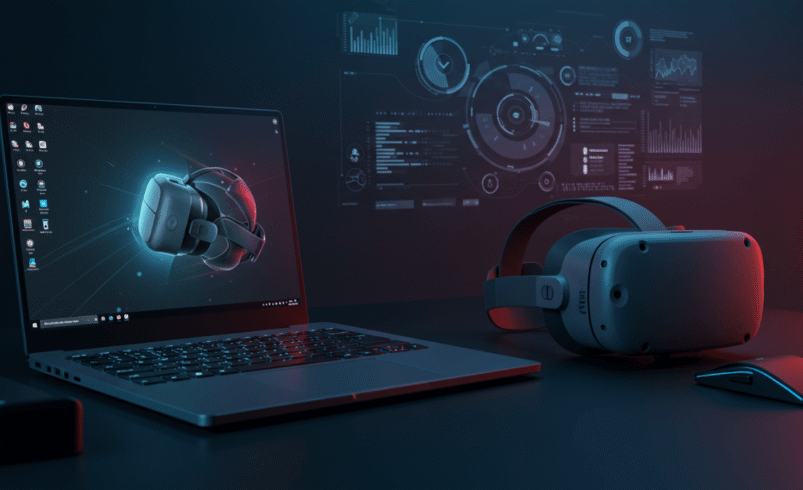

Virtual Reality (VR) has evolved into a thrilling frontier in gaming, providing an immersive experience unlike any other. However, to truly enjoy VR on a gaming laptop, proper optimization is crucial. VR requires high performance from your system, and without the right adjustments, you could face lag, poor frame rates, and an overall subpar experience. In this guide, we’ll explore how to optimize gaming laptop for VR to ensure you get the most out of your setup in 2025.
Introduction to Optimizing Gaming Laptops for VR
Why VR Needs Proper Laptop Optimization
VR gaming demands a lot from your system. Unlike traditional gaming, VR involves rendering two images simultaneously (one for each eye), and it requires very high frame rates to ensure a smooth, immersive experience. If the frame rate drops or latency increases, it can lead to nausea, discomfort, and a poor overall experience. Optimizing your gaming laptop for VR ensures that these issues are minimized, providing a smoother, more enjoyable time in the virtual world.
What Makes a Gaming Laptop Suitable for VR?
To run VR smoothly, your laptop must meet certain hardware requirements. VR gaming puts significant pressure on both the CPU and GPU, and requires ample RAM and fast storage. The key components that determine if your laptop is VR-ready include:
- Graphics Card (GPU): A powerful GPU is essential for rendering high-quality VR visuals.
- CPU: Your processor needs to handle the high computational load of VR games.
- RAM: Sufficient RAM is needed to keep the system stable and ensure smooth multitasking.
- Storage: SSDs (Solid-State Drives) are preferred because they provide faster load times compared to HDDs.
It’s essential to differentiate between VR-capable and VR-ready laptops. A VR-capable laptop might work with some less-demanding VR content, but a VR-ready laptop is designed to meet the full demands of the most graphically intense VR games.
Understanding VR Requirements for Gaming Laptops
Minimum and Recommended Specs for VR
Understanding the hardware requirements is the first step in optimizing your gaming laptop for VR. Let’s break down the minimum and recommended specifications for a decent VR experience.
- Minimum Specs (entry-level VR):
- GPU: NVIDIA GTX 1060 / AMD RX 480 or equivalent
- CPU: Intel i5-4590 / AMD Ryzen 5 1500X or better
- RAM: 8GB
- Storage: SSD with at least 50GB of available space
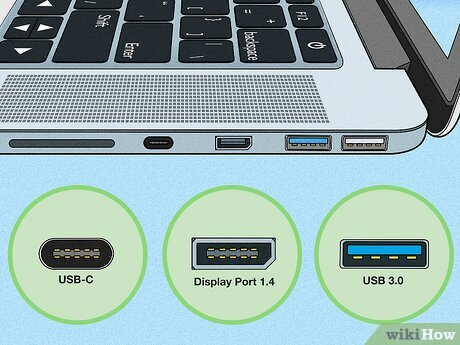
- USB Ports: At least 3 USB 3.0 ports
- Recommended Specs (for high-end VR gaming):
- GPU: NVIDIA RTX 3060 or better
- CPU: Intel i7-10700K or AMD Ryzen 7 5800X
- RAM: 16GB or more
- Storage: NVMe SSD for faster read and write speeds
- USB Ports: USB 3.0 or higher, with a dedicated port for VR headset
How VR Works and Why Your Laptop Needs to Be Ready
VR’s immersive experience relies on rendering high-resolution visuals at high frame rates, often 90Hz or more, to prevent motion sickness. This requires your laptop’s hardware to process and display two separate images, one for each eye, while also maintaining a high frame rate. Any lag or stuttering in the visuals can disrupt the experience, making it vital for your system to be well-equipped.
Hardware Optimization for VR on Your Gaming Laptop
Upgrading the GPU for Better VR Performance
The graphics card (GPU) is arguably the most important hardware component for VR. A VR-compatible GPU ensures that your gaming laptop can process the complex graphics needed for immersive VR experiences. The NVIDIA RTX series, such as the RTX 3060 and RTX 3080, offers excellent VR performance thanks to their high frame rate capabilities and ray-tracing features.
- How to Determine if Your GPU is VR-Ready:
- Check the specs on your GPU (you can find this in your laptop’s system settings or online).
- Ensure your GPU meets or exceeds the recommended specifications for VR (like NVIDIA’s minimum VR specifications).
Upgrading the RAM and Storage for Seamless VR
- RAM: VR applications are memory-hungry, and low RAM can cause stuttering or crashes. For smooth VR gaming, at least 16GB of RAM is recommended. This helps the laptop manage multiple processes simultaneously, such as rendering the VR environment, processing game data, and running background applications.
- Storage: Solid-State Drives (SSDs) are essential for VR because of their faster data transfer speeds compared to traditional Hard Disk Drives (HDDs). Loading times and game textures are much quicker, which makes for a smoother VR experience. Opt for a PCIe NVMe SSD for even faster read and write speeds.
Cooling and Thermal Management for VR Laptops
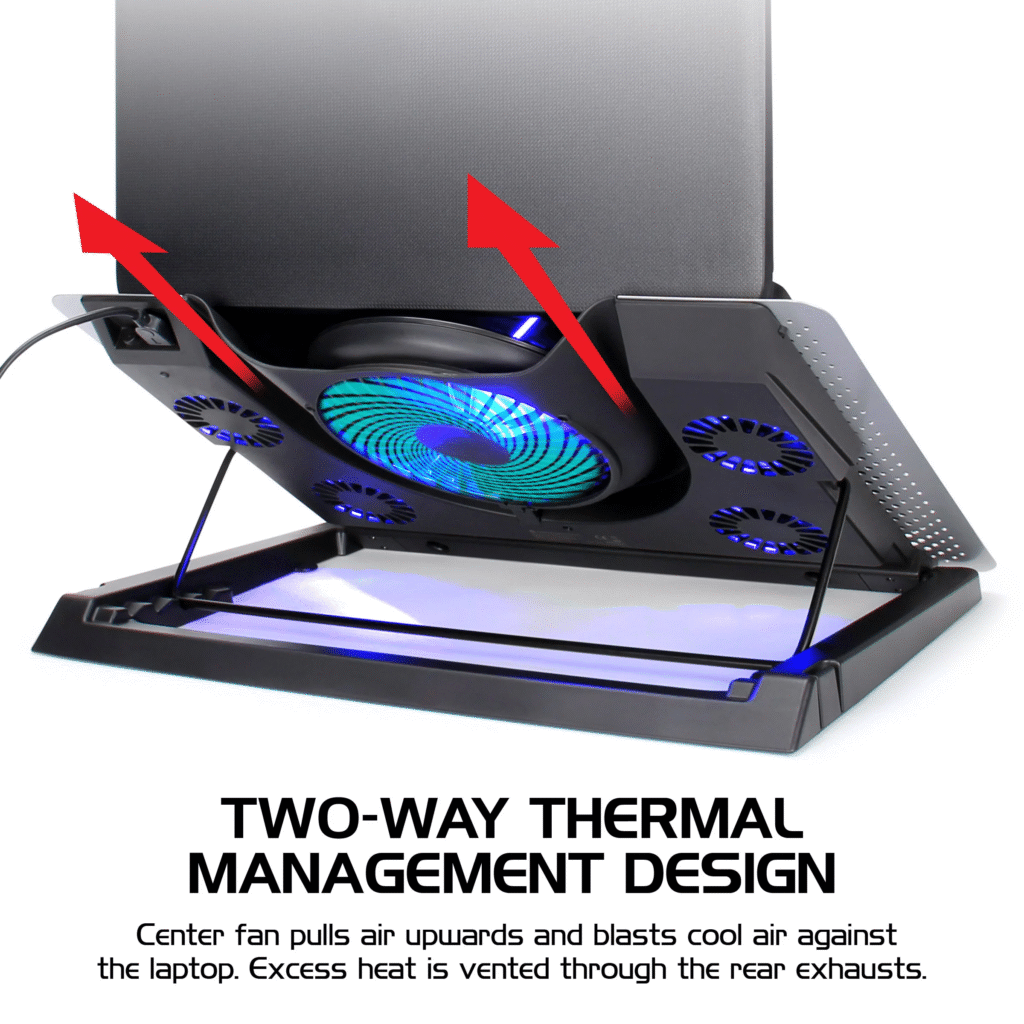
One of the common problems when running VR on a gaming laptop is overheating. VR gaming demands intense graphical processing, which can generate a lot of heat, leading to thermal throttling, where the CPU or GPU slows down to prevent damage.
Cooling Solutions:
- External Cooling Pads: A cooling pad with built-in fans can help keep your laptop’s temperature in check during long VR sessions.
- Internal Cooling Systems: Many gaming laptops come with advanced cooling systems, but upgrading or cleaning the internal fans can improve airflow and cooling efficiency.
Software Optimization for VR Gaming
Updating Drivers for Optimal VR Performance
One of the easiest ways to improve your laptop’s VR performance is by keeping your drivers up to date. Graphics drivers are frequently updated to fix bugs, improve performance, and support new hardware.
- NVIDIA Users: Visit the NVIDIA website for the latest GPU drivers.
- AMD Users: Download the latest drivers from AMD’s support page.
Additionally, updating your VR headset drivers, such as Oculus or HTC Vive, ensures that your device works correctly with the latest VR software.
Adjusting Display Settings for VR
VR headsets have their own settings, but you can optimize your laptop’s display for a better VR experience. Set the display resolution and refresh rate to match the requirements of your headset. Some VR headsets require at least 90Hz refresh rates, so ensure your laptop supports these speeds.
- Resolution Settings: Use the highest possible resolution supported by your VR headset for crisper visuals.
- Refresh Rate Settings: Ensure the refresh rate is set to match the recommended value (usually 90Hz or higher for most VR headsets).
Optimizing VR Software for Your Laptop
Software like SteamVR, Oculus Home, and other VR platforms offer settings that can be adjusted to improve performance.
- SteamVR: Inside the SteamVR settings, adjust the supersampling and resolution settings to ensure the smoothest experience without overloading your GPU.
- Oculus App: Use the Oculus Debug Tool to tweak settings like ASW (Asynchronous SpaceWarp), which can help maintain a smooth experience even on lower-end systems.
Troubleshooting Common VR Issues on Gaming Laptops
When you’re setting up your gaming laptop for VR, issues may arise during gameplay. Understanding common VR-related problems and knowing how to resolve them is key to maintaining a smooth and enjoyable VR experience. Below are some common issues and how you can troubleshoot them effectively.
Latency and Frame Rate Issues in VR
Problem: Latency (the delay between movement and visual feedback) and low frame rates are two of the most common VR performance issues. If your laptop is struggling to maintain a high frame rate, it can lead to motion sickness and an overall poor experience.
Solutions:
- Upgrade Your GPU: If your GPU doesn’t meet the VR minimum or recommended specs, it will struggle to render the high-quality visuals required for VR. Upgrading to a more powerful GPU like the NVIDIA RTX 3060 or AMD Radeon RX 6000 series can significantly improve frame rates.
- Adjust Your Display Settings: Lowering the resolution of your VR headset or adjusting the graphical settings in VR games can help reduce the load on your GPU, improving frame rates.
- Enable Frame Rate Limiting: Some VR games may benefit from capping the frame rate to prevent unnecessary strain on your GPU. In the SteamVR settings, you can set a limit on the frames per second (FPS) to maintain a consistent experience.

- Enable V-Sync or Adaptive Sync: Enabling V-Sync or Adaptive Sync can help eliminate screen tearing, which occurs when the GPU renders frames at an inconsistent rate, causing visual artifacts. Both options help synchronize the frame rate to your monitor’s refresh rate, ensuring smoother performance.
Screen Flickering and Motion Sickness Solutions
Problem: Screen flickering and motion sickness can arise due to low frame rates, incorrect display settings, or system instability. Flickering can disrupt the VR experience and make the experience uncomfortable for users.
Solutions:
- Increase Frame Rates: Aim for a consistent frame rate of 90Hz or higher for the smoothest experience. If your laptop’s GPU struggles to reach this frame rate, consider lowering the graphical settings in the VR application.
- Adjust IPD (Interpupillary Distance): Incorrectly set IPD can lead to discomfort and visual glitches. Ensure your VR headset’s IPD is set to match the distance between your eyes.
- Recalibrate Your VR Headset: Recalibrating your headset to ensure it is tracking your movement correctly can eliminate visual glitches and help prevent motion sickness.
- Use Motion Smoothing: Many VR platforms, like Oculus, offer motion smoothing technology that helps reduce stuttering by creating intermediate frames. Enabling this feature can smooth out any visual inconsistencies.
Audio Issues in VR Gaming
Problem: Poor or delayed audio can ruin the immersive experience that VR gaming provides. Audio synchronization problems or distorted sound can significantly affect gameplay.
Solutions:
- Check Audio Settings: Ensure that the correct audio device is selected within your VR settings. Sometimes, your laptop may default to an external speaker or Bluetooth audio device, causing synchronization issues.
- Update Audio Drivers: Just like GPU drivers, your audio drivers should be up to date. Check the manufacturer’s website for the latest drivers and install them to fix any sound issues.
- Use External Headphones: Many VR headsets come with built-in audio, but if you’re experiencing poor quality or sync issues, using external headphones can help. Make sure to adjust the settings in the VR software to output sound to the external device.
- Check for Interference: If you’re using Bluetooth headphones, ensure that there are no connectivity issues. For wired headphones, check the cable for any physical damage that may cause audio issues.
Best Practices for Maintaining VR Performance on Your Gaming Laptop
Now that you’ve optimized your laptop for VR and troubleshot common issues, it’s essential to maintain your system for consistent performance. Here are some best practices for keeping your gaming laptop running smoothly for VR.
Regular System Maintenance
Problem: Over time, your laptop may accumulate dust, and software may become outdated, which can negatively impact VR performance.
Solutions:
- Clean Your Laptop: Dust accumulation can block cooling vents and reduce airflow, leading to overheating. Regularly clean your laptop’s cooling fans and vents using compressed air or a soft brush.
- Perform Disk Cleanup: Use built-in system tools like Windows Disk Cleanup or third-party software to clear temporary files, system logs, and cache files. This will free up disk space and improve system performance.
- Run System Diagnostics: Periodically running system diagnostics to check for hardware or software issues is a good practice. Many gaming laptops come with built-in diagnostic tools that can detect issues related to the GPU, CPU, and RAM.
Managing Background Processes
Problem: Background apps and processes can consume system resources, slowing down your laptop and affecting VR performance.
Solutions:
- Close Unnecessary Apps: Before starting a VR gaming session, close all unnecessary applications running in the background. This includes web browsers, media players, or office applications. You can use Task Manager to check which apps are consuming the most resources.
- Use Game Mode: If your gaming laptop has a Game Mode feature, enable it before launching VR games. This mode prioritizes game performance over background apps and system tasks.
Optimizing Battery Performance for VR Laptops
Problem: Running VR games on battery power can drastically reduce performance because the laptop’s CPU and GPU may throttle to conserve energy.
Solutions:
- Plug in Your Laptop: Always play VR games while plugged into a power source. This ensures that your system runs at maximum performance without worrying about battery limitations.
- Adjust Power Settings: If you must use battery power, set your laptop’s power plan to High Performance. This prevents the system from downclocking the CPU and GPU, which would result in a laggy VR experience.
- Calibrate Your Battery: Over time, batteries lose their ability to hold a charge. Calibrate your laptop battery periodically to ensure optimal performance and battery life during VR gaming.
Choosing the Right VR Headset for Your Gaming Laptop
To ensure your VR gaming experience is seamless, choosing the right VR headset is essential. Here’s what you need to know when selecting a headset compatible with your gaming laptop.
Compatibility Between VR Headsets and Gaming Laptops
Problem: Not all VR headsets are compatible with every laptop. To ensure compatibility, check the system requirements of both your laptop and the headset.
Solutions:
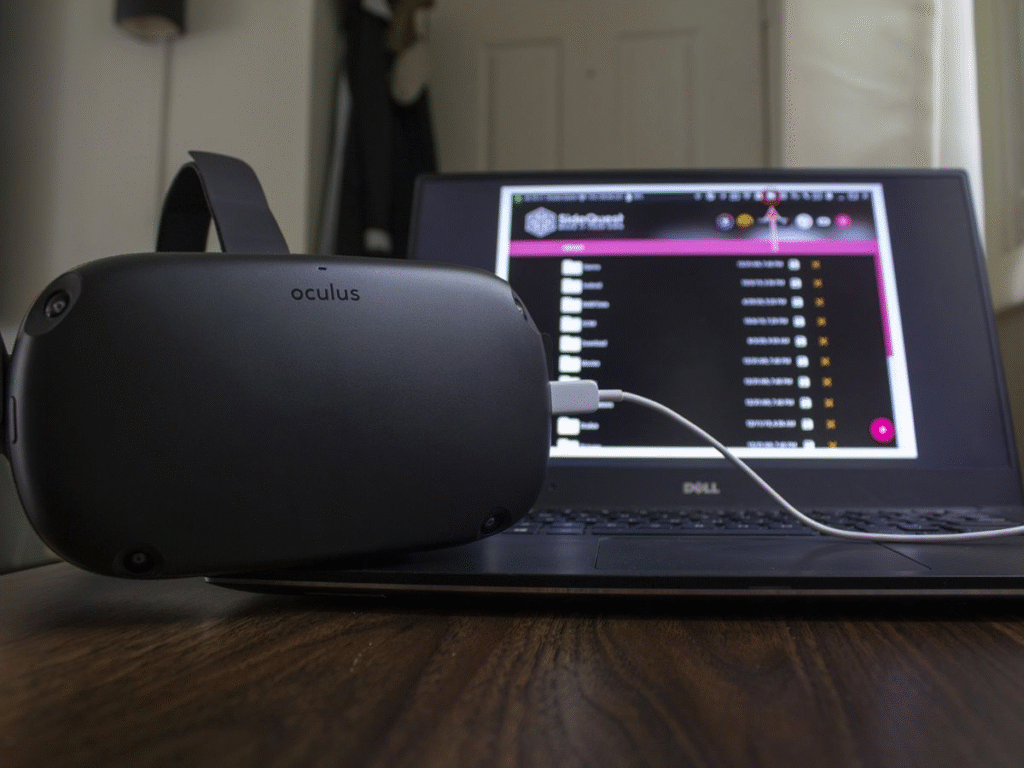
- Oculus Rift / Quest (PCVR): Oculus Rift requires a powerful gaming laptop with a USB 3.0 port and HDMI. The Oculus Quest can also be used for PC VR by linking it with a compatible laptop via the Oculus Link cable.
- HTC Vive / Vive Pro: These headsets require a laptop with a DisplayPort connection, in addition to USB 3.0 ports. They are highly demanding, so ensure your gaming laptop meets the required specs.
- Valve Index: Similar to the HTC Vive, the Valve Index requires a powerful GPU and dedicated USB/DisplayPort connections. Check for compatibility before purchasing.
VR Headset Settings for Optimized Experience
Problem: Poor headset settings can lead to discomfort or a less immersive experience.
Solutions:
- Adjust IPD: Set the Interpupillary Distance (IPD) to match the distance between your eyes for a more comfortable and clear visual experience.
- Configure Play Area: Ensure your play area is clear of obstacles and adjust your VR boundary settings to avoid any accidental collisions while gaming.
Optimizing your gaming laptop for VR is not just about upgrading hardware or installing the latest drivers — it’s about maintaining a high-performance system and configuring both the hardware and software to meet the demanding requirements of VR. By following the steps outlined in this guide, you can significantly enhance your VR experience, ensuring that it runs smoothly, with high frame rates, minimal latency, and a much-improved sense of immersion.
Summary of Key Optimization Steps
In this guide, we’ve covered several key optimization steps that will improve the VR experience on your gaming laptop:
- Upgrading the GPU: For smoother VR performance, ensure you have a VR-ready graphics card, such as the NVIDIA RTX series.
- Adding RAM and SSD Storage: Sufficient RAM (16GB or more) and an SSD for faster load times are essential for VR.
- Cooling and Thermal Management: Proper cooling solutions, such as external cooling pads, help prevent thermal throttling.
- Driver and Software Updates: Keeping your GPU and VR headset drivers up to date ensures optimal compatibility and performance.
- Managing Background Processes: Closing unnecessary apps and using Game Mode allows your laptop to dedicate resources to VR gaming.
- Choosing the Right VR Headset: Ensuring that your VR headset is compatible with your laptop helps avoid connectivity issues and maximizes performance.
By following these recommendations, you can ensure that your gaming laptop is VR-ready, offering the best possible performance for the latest VR titles.
Future-Proofing Your Laptop for VR
As VR technology continues to advance, future VR games will demand even more power and advanced graphics. It’s essential to consider future-proofing your gaming laptop for the next generation of VR.
- Consider Upgrading Hardware: As VR game developers continue to push the boundaries of realism, it may become necessary to upgrade components such as the GPU, RAM, and storage every few years to keep up with the demands of new VR titles.
- Check for New VR Standards: New VR standards and protocols may emerge, so staying up to date on changes in VR hardware requirements will help ensure your laptop remains VR-compatible.
- Invest in a High-Quality VR Headset: Headsets are constantly improving in terms of comfort, resolution, and tracking. Investing in a high-quality VR headset today can help you avoid having to upgrade again in the near future.
Final Thoughts on VR Gaming on Laptops in 2025
In 2025, VR gaming is expected to continue growing, both in terms of game development and the hardware required to run these immersive experiences. By optimizing your gaming laptop for VR, you not only improve your current gaming sessions but also ensure that you’re prepared for the future of VR.
Whether you’re looking to upgrade your current setup or dive into the world of VR for the first time, the key is to focus on your laptop’s core components, maintain regular system health, and stay up-to-date on the latest VR hardware and software developments. With the right steps, your gaming laptop will be ready to tackle the most demanding VR games and provide an unforgettable experience.
That concludes the how to optimize gaming laptop for VR guide! You’re now equipped with all the tools, tips, and best practices for ensuring your system is ready for the VR frontier in 2025. Enjoy your gaming, and may the virtual worlds you explore be as seamless and immersive as possible.