

Gaming monitors are one of the most crucial components for an immersive and competitive gaming experience. Among the top brands in the market, Dell gaming monitors stand out for their balance of performance, durability, and design. Whether you’re a casual gamer looking for a smooth visual experience or a professional esports player needing ultra-fast response times, Dell offers models that cater to every type of gamer.
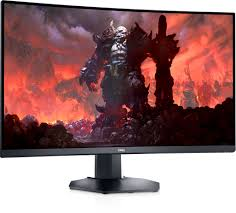
In this guide, we’ll cover everything you need to know about Dell gaming monitors: from the different types and specifications to setup tips, troubleshooting, and recommendations for the best models in 2025. By the end of this article, you’ll have a clear understanding of which Dell gaming monitor suits your needs and why investing in a high-quality monitor can dramatically improve your gaming performance.
Key benefits of choosing a Dell gaming monitor include:
- High refresh rates for smooth and responsive gameplay
- Accurate color and contrast for lifelike visuals
- Ergonomic designs for comfortable extended gaming sessions
- Advanced gaming features like G-Sync and FreeSync for tear-free visuals
With the gaming industry evolving rapidly, selecting the right monitor is more important than ever. Let’s dive deeper into why Dell monitors are a favorite among gamers worldwide.
Why Choose a Dell Gaming Monitor?
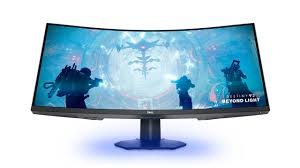
When it comes to gaming, the monitor you choose can make or break your experience. Dell gaming monitors have earned a solid reputation for delivering high performance, reliability, and features tailored specifically for gamers. Unlike standard monitors, Dell’s gaming lineup focuses on speed, clarity, and comfort, ensuring that both casual and competitive players get the most out of their setups.
Key reasons to choose a Dell gaming monitor include:
- Exceptional Build Quality
Dell monitors are known for their durable construction. Many models feature sturdy stands, adjustable height, tilt, and swivel options, making them ideal for long gaming sessions. Their sleek designs also blend well with any gaming setup. - High Refresh Rates and Fast Response Times
Gaming monitors must keep up with fast-moving action. Dell monitors offer refresh rates ranging from 60Hz to 240Hz, and response times as low as 1ms. This reduces motion blur and ensures that competitive games like first-person shooters feel smooth and responsive. - Advanced Gaming Features
Dell includes technologies such as G-Sync and FreeSync, which synchronize your monitor’s refresh rate with your GPU to eliminate screen tearing and stuttering. Other features like HDR support and high contrast ratios improve visual fidelity, making games look vibrant and immersive. - Wide Range of Options
Whether you prefer curved screens, flat panels, or ultrawide monitors, Dell offers models suited for every type of gamer. This variety allows you to select a monitor that matches both your gameplay style and budget. - Excellent Color Accuracy
Many Dell gaming monitors use IPS panels, which provide wide viewing angles and accurate colors. This is especially important for games with detailed graphics and for content creators who also use their monitors for design or video editing. - Strong Reputation and Support
Dell has been a trusted brand in computing for decades. Their gaming monitors come with reliable warranties, customer support, and frequent firmware updates, giving users peace of mind.
In short, a Dell gaming monitor is not just a screen—it’s a performance tool. It enhances reaction times, visual clarity, and overall gaming enjoyment, making it an excellent choice for both serious gamers and casual enthusiasts alike.
Types of Dell Gaming Monitors
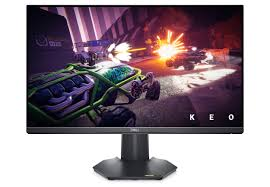
Dell offers a diverse range of gaming monitors designed to meet the needs of different gamers. Understanding the types of monitors available can help you choose the one that fits your gameplay style, desk setup, and budget.
Dell Curved Gaming Monitors
Curved monitors have become increasingly popular for their immersive experience. Dell’s curved gaming monitors wrap around your field of vision, making games feel more lifelike.
Benefits of curved Dell gaming monitors:
- Enhanced immersion in RPGs, racing, and simulation games
- Reduced eye strain by keeping all parts of the screen at a similar distance
- Modern aesthetic that complements gaming setups
Popular models:
| Model | Screen Size | Refresh Rate | Panel Type | Price Range |
|---|---|---|---|---|
| Dell S3423DW | 34″ | 144Hz | IPS | $500-$600 |
| Dell Alienware AW3423DW | 34″ | 175Hz | QD-OLED | $1,200-$1,400 |
Dell Flat Gaming Monitors
Flat monitors are ideal for competitive gamers who prioritize speed and accuracy. They are usually lighter, easier to mount, and less prone to distortion at the edges compared to curved displays.
Benefits of flat Dell gaming monitors:
- Quick response times for FPS and MOBA games
- Affordable options for budget-conscious gamers
- Easier multi-monitor setups for esports players
Popular models:
| Model | Screen Size | Refresh Rate | Panel Type | Price Range |
|---|---|---|---|---|
| Dell S2721DGF | 27″ | 165Hz | IPS | $400-$500 |
| Dell Alienware AW2723DF | 27″ | 240Hz | IPS | $700-$800 |
Dell Ultrawide Gaming Monitors
Ultrawide monitors provide extra horizontal screen space, perfect for immersive gaming, multitasking, and content creation. They often have a 21:9 aspect ratio instead of the standard 16:9.
Benefits of ultrawide Dell gaming monitors:
- Wider field of view for open-world games
- Better multitasking with multiple windows open simultaneously
- Cinematic gaming experience
Popular models:
| Model | Screen Size | Refresh Rate | Panel Type | Price Range |
|---|---|---|---|---|
| Dell U3821DW | 38″ | 75Hz | IPS | $900-$1,000 |
| Dell Alienware AW3821DW | 38″ | 144Hz | IPS | $1,200-$1,500 |
Each type of Dell gaming monitor has unique advantages depending on your gaming style. Curved monitors are best for immersion, flat monitors excel in competitive gaming, and ultrawide monitors combine gameplay with productivity.
Dell Gaming Monitor Specifications Explained
Understanding the specifications of a Dell gaming monitor is crucial to choosing the right one for your gaming needs. Each spec affects performance, visual quality, and overall gaming experience. Here’s a detailed breakdown:
Screen Size and Resolution
The screen size and resolution determine how sharp and immersive your visuals are.
- Screen Size: Dell gaming monitors range from 24 inches to over 38 inches. Smaller screens are suitable for competitive gaming due to reduced eye movement, while larger screens enhance immersion in RPGs and racing games.
- Resolution:
- Full HD (1920×1080): Standard for budget monitors; good for 144Hz+ gaming.
- QHD (2560×1440): Offers sharper visuals; ideal for mid-range to high-end gaming.
- 4K (3840×2160): Ultra-high clarity; best for large screens and immersive experiences but requires a powerful GPU.
Refresh Rate
Refresh rate measures how many times per second the monitor updates the image, expressed in Hz.
- 60Hz: Entry-level; fine for casual gaming.
- 120Hz–144Hz: Standard for most gamers; smoother motion and less blur.
- 240Hz+: High-end competitive gaming; perfect for FPS and esports players.
Higher refresh rates reduce motion blur and provide a smoother, more responsive gaming experience.
Response Time
Response time is how quickly a pixel can change from one color to another.
- 1ms – 4ms: Ideal for fast-paced games; minimizes ghosting.
- 5ms+: Suitable for casual gaming or slower-paced titles.
Dell’s high-end monitors often boast 1ms response time, giving competitive gamers a significant edge.
Panel Types
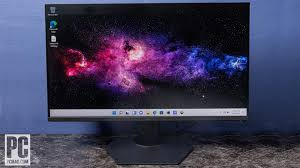
Dell gaming monitors use three main panel technologies, each with advantages and trade-offs:
| Panel Type | Pros | Cons |
|---|---|---|
| IPS | Excellent color accuracy, wide viewing angles | Slightly slower response times than TN |
| TN | Fastest response times, affordable | Poor color reproduction, narrow viewing angles |
| VA | High contrast, deep blacks | Slower response times than TN/IPS, slight ghosting |
IPS panels dominate Dell’s gaming lineup for a balance of color and speed.
Connectivity Options
Modern Dell gaming monitors offer multiple ports to connect PCs, laptops, and consoles:
- HDMI & DisplayPort: Standard for high-refresh and high-resolution gaming
- USB-C / USB Hub: Convenient for laptops and peripherals
- G-Sync / FreeSync: Compatible with NVIDIA and AMD GPUs for smooth gameplay
Understanding these specifications ensures you select a Dell gaming monitor that fits your gaming style, whether it’s competitive esports or immersive story-driven adventures.
Dell Gaming Monitor Features That Enhance Gameplay
Dell gaming monitors come packed with features designed to improve both performance and comfort. These features ensure that games look great, run smoothly, and keep you comfortable during long sessions.
Adaptive Sync Technology (G-Sync and FreeSync)
One of the most important features for gamers is adaptive sync, which synchronizes the monitor’s refresh rate with your GPU to eliminate screen tearing and stuttering.
- NVIDIA G-Sync: Ideal for NVIDIA GPU users; ensures ultra-smooth gameplay.
- AMD FreeSync: Compatible with AMD GPUs; provides tear-free visuals at a lower cost.
By reducing screen tearing, these technologies give competitive gamers a smoother, more responsive experience.
HDR Support and Color Performance
High Dynamic Range (HDR) allows Dell monitors to display more vivid colors and better contrast between bright and dark areas.
- Benefits for gamers:
- Lifelike visuals in story-driven games
- Enhanced details in shadows and highlights
- Improved cinematic experience for movies and streaming
Many Dell monitors also use IPS or QD-OLED panels to deliver richer colors and wider viewing angles.
Adjustable Stands and Ergonomic Design
Dell understands that comfort is key for long gaming sessions. Their monitors often come with:
- Height adjustment
- Tilt, swivel, and pivot options
- VESA mount compatibility
This ergonomic flexibility reduces neck and eye strain while letting you set up the perfect gaming position.
Built-in Speakers vs External Audio
Some Dell gaming monitors include built-in speakers for convenience, but most serious gamers prefer external speakers or headsets for superior sound quality. Built-in speakers are useful for casual gaming or desk setups with limited space.
Eye Care Technologies
Dell incorporates features to reduce eye fatigue, such as:
- Flicker-free technology: Eliminates screen flickering at all brightness levels
- Blue light filters: Reduces harmful blue light exposure
- Anti-glare coatings: Minimizes reflections in brightly lit rooms
These technologies help maintain comfort during long gaming or work sessions.
Best Dell Gaming Monitors in 2025
Choosing the right Dell gaming monitor can be overwhelming given the wide range of options available. Here’s a curated list of some of the top Dell gaming monitors in 2025, categorized by type and performance, along with a comparison table to help you make an informed decision.
Top-Rated Dell Gaming Monitors by Category
- Best Curved Monitor:
- Dell Alienware AW3423DW – 34-inch QD-OLED, 175Hz, 1ms response, perfect for immersive RPG and racing games.
- Best Flat Monitor:
- Dell Alienware AW2723DF – 27-inch IPS, 240Hz, 1ms response, ideal for competitive esports and FPS games.
- Best Budget Monitor:
- Dell S2721DGF – 27-inch IPS, 165Hz, 1ms response, excellent balance of price and performance.
- Best Ultrawide Monitor:
- Dell Alienware AW3821DW – 38-inch IPS, 144Hz, ultra-immersive display for gaming and multitasking.
Comparison Table: Top Dell Gaming Monitors
| Model | Screen Size | Refresh Rate | Response Time | Panel Type | Price Range | Best For |
|---|---|---|---|---|---|---|
| Alienware AW3423DW | 34″ | 175Hz | 1ms | QD-OLED | $1,200–$1,400 | Immersive RPG & Racing |
| Alienware AW2723DF | 27″ | 240Hz | 1ms | IPS | $700–$800 | Competitive FPS & Esports |
| S2721DGF | 27″ | 165Hz | 1ms | IPS | $400–$500 | Budget Gaming |
| Alienware AW3821DW | 38″ | 144Hz | 1ms | IPS | $1,200–$1,500 | Ultrawide Gaming & Productivity |
Recommendations by Gamer Type
- Casual Gamers: Dell S2721DGF – Affordable, reliable, and great visuals.
- Competitive FPS Gamers: Alienware AW2723DF – Ultra-fast refresh rate and response time.
- Immersive RPG/Racing Gamers: Alienware AW3423DW – Curved and OLED technology for cinematic gameplay.
- Multitaskers & Streamers: Alienware AW3821DW – Ultrawide for multitasking and immersive viewing.
These monitors reflect the latest Dell gaming technology in 2025, ensuring smooth gameplay, vibrant visuals, and ergonomic comfort for all types of gamers.
How to Choose the Right Dell Gaming Monitor for You
Selecting the perfect Dell gaming monitor requires balancing performance, features, and budget. Here’s a detailed guide to help you make the right choice:
1. Consider Your Gaming Type
- Competitive FPS or MOBA games: Prioritize high refresh rates (144Hz+) and low response times (1ms) for smooth, responsive gameplay. Flat monitors like the Alienware AW2723DF are ideal.
- Immersive RPGs or racing games: Look for curved or ultrawide monitors with HDR support for cinematic visuals, such as the AW3423DW or AW3821DW.
- Casual or mixed-use gaming: Mid-range monitors with 165Hz refresh and IPS panels offer a balance between performance and visual quality.
2. Budget vs Features
- Budget ($300–$500): Dell S2721DGF – Good for entry-level to mid-tier gaming with IPS panels and decent refresh rates.
- Mid-range ($500–$900): Offers features like HDR, ultrawide options, and higher refresh rates.
- High-end ($900+): Premium monitors with QD-OLED panels, 240Hz refresh rates, and advanced sync technologies.
3. Desk Space and Setup
- Curved and ultrawide monitors require more desk space. Ensure your setup can accommodate the monitor’s size and depth.
- Flat monitors are ideal for multi-monitor setups or smaller desks.
- Consider VESA mounting if you want more flexibility in placement.
4. Connectivity Needs
- Make sure the monitor has HDMI or DisplayPort for your PC/console.
- Extra USB ports or USB-C connections can be useful for peripherals or laptops.
- Check for G-Sync or FreeSync compatibility depending on your GPU.
5. Ergonomics and Comfort
- Adjustable stands, tilt, swivel, and height options are important for long gaming sessions.
- Eye care features like flicker-free technology and blue light filters reduce strain.
By evaluating your gaming style, budget, and setup, you can choose a Dell gaming monitor that offers the best combination of performance, visuals, and comfort.
Dell Gaming Monitor vs Other Brands
When investing in a gaming monitor, it’s important to compare Dell gaming monitors with other leading brands to ensure you get the best value and performance. Here’s a detailed look:
1. Dell vs ASUS
- Dell: Focuses on color accuracy, build quality, and ergonomic designs. Great for immersive and competitive gaming with features like G-Sync/FreeSync.
- ASUS: Known for extremely high refresh rates and gaming-centric features like Aura Sync lighting. Often preferred by esports professionals.
- Verdict: Choose Dell for a balance of comfort, visuals, and performance; ASUS for raw speed and RGB customization.
2. Dell vs Acer
- Dell: Offers reliable monitors with IPS and OLED panels, emphasizing image quality and eye care.
- Acer: Offers budget-friendly monitors with high refresh rates, but panel quality may be lower.
- Verdict: Dell is better for long-term investment and premium visuals; Acer is suitable for cost-conscious gamers.
3. Dell vs LG
- Dell: Strong in ergonomics, gaming-specific features, and warranty/support.
- LG: Known for ultrawide and OLED monitors with vibrant colors and cinematic visuals.
- Verdict: Choose Dell for competitive gaming and reliability; LG for immersive ultrawide or OLED experiences.
4. Dell vs Samsung
- Dell: Focused on performance, ergonomics, and professional-grade panels.
- Samsung: Offers curved monitors with high refresh rates and strong contrast ratios. Often great for cinematic gameplay.
- Verdict: Dell for professional and esports gaming; Samsung for large, curved, visually immersive setups.
Summary Table: Brand Comparison
| Brand | Strengths | Weaknesses | Best For |
|---|---|---|---|
| Dell | Color accuracy, ergonomics, build quality | Slightly higher price | Balanced gamers, competitive & immersive gaming |
| ASUS | High refresh rates, esports features | Pricey, aesthetics may be flashy | Esports & fast-paced games |
| Acer | Budget-friendly, decent refresh rates | Panel quality, viewing angles | Entry-level gaming |
| LG | Ultrawide & OLED, cinematic visuals | Expensive, slower response times | Immersive & creative gamers |
| Samsung | High contrast, curved monitors | Limited esports-oriented features | Large curved screens & cinematic gaming |
How to Set Up Your Dell Gaming Monitor
Setting up a Dell gaming monitor correctly ensures you get the best performance, visuals, and comfort. Here’s a step-by-step guide to help you get started:
1. Unboxing and Physical Setup
- Carefully remove the monitor from its packaging and place it on a stable surface.
- Attach the stand, adjusting height, tilt, and swivel according to your desk setup.
- If desk space is limited, consider using a VESA mount to free up room.
2. Connecting to Your PC or Console
- Use DisplayPort for PC connections when gaming at high refresh rates.
- HDMI is suitable for both PCs and consoles like PS5, Xbox Series X, and streaming devices.
- Ensure your GPU supports the resolution and refresh rate of your monitor for optimal performance.
3. Adjusting Settings for Optimal Performance
- Refresh Rate: Set the monitor’s refresh rate in your PC’s display settings to match the monitor’s capability (e.g., 144Hz, 240Hz).
- Resolution: Use the native resolution (e.g., 2560×1440 for QHD) for sharp visuals.
- Brightness & Contrast: Adjust according to your room lighting and game type for comfort and visibility.
- Color Modes: Many Dell gaming monitors have preset modes like FPS, RTS, or Racing. Test different modes to see what suits your gaming style.
4. Calibrating Colors and Gaming Modes
- Use built-in calibration tools or software to adjust colors for accurate visuals.
- Enable G-Sync or FreeSync depending on your GPU to eliminate screen tearing.
- Turn on HDR if supported, but test performance as HDR may slightly affect frame rates.
5. Cable Management and Setup Tips
- Organize cables to prevent clutter and accidental disconnections.
- Keep the monitor at eye level to reduce neck strain.
- Maintain a viewing distance of 20–30 inches for 27–34 inch monitors; adjust for larger ultrawide models.
Proper setup ensures your Dell gaming monitor delivers its full potential, offering smooth gameplay, vivid visuals, and ergonomic comfort.
Troubleshooting Common Dell Gaming Monitor Issues
Even the best Dell gaming monitors can encounter occasional issues. Knowing how to troubleshoot common problems can save time and improve your gaming experience.
1. Flickering or Screen Tearing
- Cause: Often caused by mismatched refresh rates or loose connections.
- Solution:
- Ensure cables (HDMI/DisplayPort) are securely connected.
- Match your monitor’s refresh rate with your GPU settings.
- Enable G-Sync or FreeSync if supported to reduce tearing.
2. Dead Pixels and Display Issues
- Cause: Manufacturing defects or physical damage.
- Solution:
- Check warranty coverage; Dell often replaces defective monitors.
- Minor dead pixels may be resolved using pixel-fixing software or gentle massaging techniques (use caution).
3. Connectivity Problems
- Cause: Loose cables, incompatible ports, or outdated drivers.
- Solution:
- Reconnect cables or try a different HDMI/DisplayPort.
- Update GPU drivers to the latest version.
- Test the monitor with another device to isolate the issue.
4. Firmware Updates
- Cause: Older firmware can cause performance or compatibility issues.
- Solution:
- Check Dell’s official support page for monitor firmware updates.
- Follow instructions carefully to install updates without interrupting power.
5. General Tips for Smooth Operation
- Avoid placing the monitor in direct sunlight to prevent glare and overheating.
- Use screen savers or power-saving modes to extend monitor life.
- Clean the monitor regularly with a microfiber cloth and avoid harsh chemicals.
By addressing these common problems proactively, your Dell gaming monitor will maintain peak performance and longevity.
Tips to Extend the Life of Your Dell Gaming Monitor
A Dell gaming monitor is a significant investment, and proper care can help it last for many years. Here are practical tips to keep your monitor performing at its best:
1. Regular Cleaning and Maintenance
- Use a soft microfiber cloth to wipe the screen and remove dust.
- Avoid using harsh chemicals; a mixture of water and isopropyl alcohol (50/50) is safe for most screens.
- Clean ports and vents to prevent dust buildup, which can affect performance.
2. Avoiding Burn-In or Image Retention
- Use screen savers or enable automatic sleep modes when the monitor is idle.
- Avoid leaving static images, like game HUDs or desktop icons, on the screen for extended periods.
- For OLED panels, slightly dimming brightness can reduce the risk of burn-in.
3. Optimal Power and Brightness Settings
- Adjust brightness and contrast to comfortable levels; extreme brightness can reduce panel lifespan.
- Enable power-saving modes when not gaming to minimize energy consumption and wear.
- Avoid constant use at maximum refresh rates unless necessary for competitive gaming.
4. Ergonomics and Placement
- Keep the monitor at eye level and a proper viewing distance (20–30 inches for standard 27–34” screens).
- Ensure proper airflow around the monitor to prevent overheating.
- Tilt and adjust the monitor to reduce glare and avoid strain on your eyes and neck.
By following these steps, you can maximize the lifespan of your Dell gaming monitor, ensuring smooth visuals, fast performance, and continued comfort during long gaming sessions.
Frequently Asked Questions (FAQ) About Dell Gaming Monitors
Here are answers to the most common questions gamers have about Dell gaming monitors:
1. Is a Dell gaming monitor good for competitive esports?
Yes. Dell monitors like the Alienware AW2723DF offer high refresh rates (240Hz) and 1ms response times, which are ideal for fast-paced esports games such as CS:GO, Valorant, and League of Legends.
2. Can I use a Dell gaming monitor for consoles like PS5 or Xbox Series X?
Absolutely. Most Dell gaming monitors support HDMI 2.0 or higher, making them compatible with modern consoles. For 4K and high refresh rate support, ensure the monitor and console settings match.
3. How do I enable G-Sync or FreeSync on a Dell monitor?
- G-Sync: Requires an NVIDIA GPU and must be enabled in the NVIDIA Control Panel.
- FreeSync: Requires an AMD GPU and must be activated via the monitor’s on-screen display (OSD) and AMD Radeon settings.
4. Are Dell gaming monitors worth the price?
Yes. While Dell monitors may be slightly more expensive than some competitors, they offer reliable build quality, excellent color accuracy, and advanced gaming features, making them a good long-term investment.
5. What is the difference between Dell Alienware and standard Dell gaming monitors?
- Alienware monitors: Premium models with higher refresh rates, OLED/QD-OLED panels, advanced sync technology, and more gamer-focused designs.
- Standard Dell monitors: Reliable IPS panels, good color accuracy, slightly lower refresh rates, and more budget-friendly.
These FAQs cover common concerns, helping gamers make informed decisions about purchasing and using a Dell gaming monitor.Frequently Asked Questions (FAQ) About Dell Gaming Monitors
Here are answers to the most common questions gamers have about Dell gaming monitors:
1. Is a Dell gaming monitor good for competitive esports?
Yes. Dell monitors like the Alienware AW2723DF offer high refresh rates (240Hz) and 1ms response times, which are ideal for fast-paced esports games such as CS:GO, Valorant, and League of Legends.
2. Can I use a Dell gaming monitor for consoles like PS5 or Xbox Series X?
Absolutely. Most Dell gaming monitors support HDMI 2.0 or higher, making them compatible with modern consoles. For 4K and high refresh rate support, ensure the monitor and console settings match.
3. How do I enable G-Sync or FreeSync on a Dell monitor?
- G-Sync: Requires an NVIDIA GPU and must be enabled in the NVIDIA Control Panel.
- FreeSync: Requires an AMD GPU and must be activated via the monitor’s on-screen display (OSD) and AMD Radeon settings.
4. Are Dell gaming monitors worth the price?
Yes. While Dell monitors may be slightly more expensive than some competitors, they offer reliable build quality, excellent color accuracy, and advanced gaming features, making them a good long-term investment.
5. What is the difference between Dell Alienware and standard Dell gaming monitors?
- Alienware monitors: Premium models with higher refresh rates, OLED/QD-OLED panels, advanced sync technology, and more gamer-focused designs.
- Standard Dell monitors: Reliable IPS panels, good color accuracy, slightly lower refresh rates, and more budget-friendly.
These FAQs cover common concerns, helping gamers make informed decisions about purchasing and using a Dell gaming monitor.