


Meta Description:
Learn how to optimize your Xbox Series X for low latency gaming with expert tips, settings tweaks, and network improvements for smoother, faster gameplay.
Understanding Low Latency Gaming on Xbox Series X
What Is Latency and Why It Matters
Latency, often referred to as input lag, is the delay between a player’s action and the corresponding response on the screen. On consoles like the Xbox Series X, even milliseconds of delay can affect performance, especially in fast-paced games such as shooters, racing, or fighting titles. Latency is different from frame rate: while frame rate measures how smoothly a game renders visually, latency measures how quickly the game reacts to your input. Lower latency provides a more responsive and immersive gaming experience, making every button press and joystick movement count.
How Low Latency Improves Gaming Experience
For competitive and casual gamers alike, minimizing latency is critical. Low latency ensures:
- Faster response times in multiplayer battles.
- Improved precision, especially in FPS games where split-second decisions matter.
- Smoother gameplay, reducing motion sickness in VR or fast-paced games.
- Better synchronization with other players in online matches, minimizing the frustration of lag-induced mistakes.
For example, in a game like Halo Infinite, an input delay of even 50ms can mean the difference between a successful shot and being eliminated. Similarly, racing games like Forza Horizon 5 benefit immensely from low latency, as steering and braking inputs are executed instantly.
Common Causes of High Latency on Xbox Series X
High latency on Xbox Series X can stem from multiple factors, including:
- Network Issues: Slow internet speeds, Wi-Fi interference, or unstable connections can drastically increase latency.
- Display and HDMI Settings: Using TVs without Game Mode enabled, or older HDMI cables, can introduce input lag.
- Game Performance and System Updates: Running resource-heavy games or missing system updates can increase delay, especially if the console is performing background downloads.
By understanding the causes and effects of latency, gamers can take informed steps to optimize their Xbox Series X for the lowest possible input delay and the smoothest gaming experience.
Optimizing Xbox Series X Settings for Low Latency

Optimizing your Xbox Series X settings is one of the most effective ways to reduce latency and achieve a smoother gaming experience. Even minor tweaks can make a noticeable difference, especially when combined with network optimizations.FC
Enabling Game Mode on Your TV
Most modern TVs come with a Game Mode, which prioritizes speed over visual effects to reduce input lag. When enabled, Game Mode bypasses unnecessary image processing, allowing your Xbox Series X to communicate directly with the display.
Steps to enable Game Mode:
- Open your TV’s settings menu.
- Navigate to Picture Settings or Display Options.
- Find and enable Game Mode.
- Confirm and save your settings.
Why it matters: Game Mode can reduce input lag by 10–30ms, which is significant for fast-paced gaming where every millisecond counts.
Adjusting Display Settings on Xbox Series X
Proper display settings on the console itself can further lower latency:
- Resolution: Use the native resolution of your TV for optimal performance.
- Refresh Rate: Set the console to 120Hz if your TV supports it; higher refresh rates reduce motion blur and improve response time.
- HDR Settings: While HDR improves visual quality, it can add slight processing delays. Test HDR on/off to see what works best for your setup.
Tip: Enabling Variable Refresh Rate (VRR) can help synchronize the console and display, reducing screen tearing and stutter without adding latency.
Using Auto Low Latency Mode (ALLM)
Auto Low Latency Mode (ALLM) is a feature supported by Xbox Series X and many modern TVs. ALLM automatically switches your TV into Game Mode whenever you start a game, so you don’t have to manually toggle settings.
Benefits of ALLM:
- Instant reduction in input lag.
- Automatic optimization for different games.
- Works seamlessly with compatible TVs and monitors.
Turning Off Unnecessary Visual Effects
Visual effects like motion blur, depth-of-field, and post-processing can enhance graphics but also increase latency. To maximize responsiveness:
- Disable motion blur in-game.
- Lower or turn off post-processing effects.
- Adjust brightness and contrast settings to reduce image processing demands.
Impact: Reducing these effects can shave off a few milliseconds of lag and improve overall reaction time, especially in competitive games.
Optimizing your console and TV settings creates the foundation for low-latency gaming. The next step is network and internet optimization, which addresses the other major source of input delay: online connectivity.
Network and Internet Optimization for Xbox Series X
A strong and stable network connection is essential for low latency gaming on Xbox Series X. Even the fastest console settings won’t help if your internet connection is slow or inconsistent.
Wired vs. Wireless Connection

A wired Ethernet connection is always preferable for gaming because it provides a stable, low-latency connection. Wi-Fi, even with strong signal strength, is more prone to interference and packet loss, which can increase ping and input lag.
Tips for wired connection:
- Use a high-quality Cat6 or Cat7 Ethernet cable.
- Connect directly to your router instead of through switches or extenders.
If you must use Wi-Fi:
- Use 5GHz Wi-Fi instead of 2.4GHz for faster speeds.
- Position the console close to the router to minimize interference.
- Reduce network congestion by limiting other devices using the internet during gameplay.
Choosing the Right Router and Settings
A gaming-optimized router can significantly reduce latency:
- Quality of Service (QoS): Prioritize Xbox traffic to ensure your console gets the best bandwidth.
- UPnP (Universal Plug and Play): Helps games connect to servers easily, improving matchmaking and reducing NAT-related issues.
- Port Forwarding: Opens specific ports for Xbox Live to enhance connection stability.
Recommended Router Specs:
| Feature | Benefit |
|---|---|
| Dual-band Wi-Fi (2.4GHz + 5GHz) | Supports stable and fast connections |
| Gigabit Ethernet ports | Ensures maximum wired speed |
| Low-latency gaming modes | Reduces ping for online play |
Testing and Reducing Ping
Use the Xbox network diagnostics tool to check your connection speed and ping. High ping can result in noticeable lag, especially in multiplayer games.
Steps to reduce ping:
- Close background downloads or apps.
- Switch from Wi-Fi to wired connection if possible.
- Choose game servers closer to your region.
- Restart your router to refresh connections.
Understanding NAT Types and Gaming Performance
Network Address Translation (NAT) type affects how easily your console connects to other players:
- Open NAT: Best for online gaming; connects to any player.
- Moderate NAT: May have connection limitations with some players.
- Strict NAT: Causes matchmaking issues and higher latency.
How to fix NAT issues:
- Enable UPnP on your router.
- Use port forwarding to open necessary Xbox Live ports.
- Consider a wired connection if NAT remains strict.
Optimizing your network ensures that your Xbox Series X maintains a consistent and low-latency connection, which is especially critical for online multiplayer and cloud gaming.
Game-Specific and System Tips for Low Latency
Beyond console and network settings, several game-specific and system-level optimizations can further reduce latency on Xbox Series X. These tweaks focus on ensuring the console and games themselves run as efficiently as possible.Advanced Tips to Further Reduce Latency
For gamers seeking the absolute lowest possible latency on Xbox Series X, advanced strategies beyond basic settings and network tweaks can make a noticeable difference. These optimizations often involve upgrading hardware or fine-tuning your gaming environment.
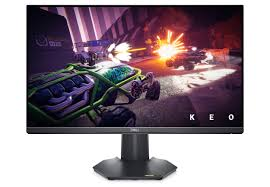
Using a Gaming Monitor Instead of a TV
While modern TVs can perform well with Game Mode and ALLM, gaming monitors typically offer lower input lag and higher refresh rates.
Benefits of gaming monitors:
- Input lag as low as 1–5ms compared to 10–30ms on TVs.
- Higher refresh rates (120Hz or 144Hz) for smoother visuals.
- Adaptive sync technologies like G-Sync or FreeSync to reduce screen tearing.
Tip: If competitive gaming is your priority, a monitor can significantly enhance responsiveness and precision.
Optimizing Display Cables and Ports
Your choice of HDMI cable and port can also affect latency and refresh rate performance:
- Use HDMI 2.1 cables for full 120Hz support at 4K resolution.
- Keep cable lengths reasonable; longer cables can introduce minor signal delays.
- Connect to the correct HDMI port on your TV/monitor, usually labeled for high bandwidth or gaming.
Impact: Proper cables and ports ensure that the Xbox Series X delivers the fastest signal possible without unnecessary delay.
Leveraging Cloud Gaming and xCloud
Xbox’s cloud gaming service (xCloud) allows some games to be played with lower perceived latency if local network or console performance is limiting. While cloud gaming introduces internet-based latency, Microsoft optimizes server response to reduce input delay as much as possible.
Tips for cloud gaming:
- Use a wired connection for the most consistent experience.
- Choose servers closest to your region.
- Limit other network activity to maximize available bandwidth.
These advanced steps, combined with console, display, and network optimizations, provide a comprehensive strategy to achieve minimal latency on Xbox Series X.
Next, I can continue with “Frequently Asked Questions About Xbox Series X Latency”. Do you want me to proceed?
Keeping Xbox Series X Software Updated
System updates are crucial for performance improvements and latency reduction. Xbox regularly releases firmware updates that optimize how the console handles games and network connections. Similarly, keeping games updated ensures bug fixes and performance patches are applied.
Tips:
- Enable automatic updates for both console and games.
- Check for optional performance patches that specifically improve frame rate or latency.
- Restart the console after updates to apply changes fully.
Enabling Performance Mode in Games
Many modern games offer a Performance Mode, which prioritizes frame rate over graphical fidelity. Lowering visual effects in favor of smoother gameplay reduces input lag and improves responsiveness.
Example:
- Forza Horizon 5: Performance Mode locks the game at 120 FPS for faster response, while Quality Mode focuses on higher resolution and visual effects but can slightly increase latency.
Tip: Use Performance Mode for competitive or fast-paced gaming, and Quality Mode for casual or story-driven play.
Reducing Background Downloads and Apps
Xbox Series X can run background downloads or apps that consume system resources, indirectly increasing latency in games.
Optimization steps:
- Pause or cancel unnecessary downloads while gaming.
- Close apps running in the background (e.g., streaming apps, social apps).
- Use the Quick Resume feature only when necessary to avoid memory conflicts.
Using Xbox Accessories for Faster Response
Certain accessories can reduce perceived latency:
- Controllers: Xbox Series X controllers are already low-latency, but Wired or Xbox Elite controllers offer slightly faster response in some cases.
- Headsets: High-quality wired headsets reduce audio lag compared to wireless options.
- Display devices: Using monitors with low input lag instead of TVs can provide faster visual feedback.
Implementing these system and game-specific strategies ensures that every input and action is registered promptly, giving you a competitive edge in both casual and multiplayer gaming.
Advanced Tips to Further Reduce Latency
For gamers seeking the absolute lowest possible latency on Xbox Series X, advanced strategies beyond basic settings and network tweaks can make a noticeable difference. These optimizations often involve upgrading hardware or fine-tuning your gaming environment.
Using a Gaming Monitor Instead of a TV
While modern TVs can perform well with Game Mode and ALLM, gaming monitors typically offer lower input lag and higher refresh rates.
Benefits of gaming monitors:
- Input lag as low as 1–5ms compared to 10–30ms on TVs.
- Higher refresh rates (120Hz or 144Hz) for smoother visuals.
- Adaptive sync technologies like G-Sync or FreeSync to reduce screen tearing.
Tip: If competitive gaming is your priority, a monitor can significantly enhance responsiveness and precision.
Optimizing Display Cables and Ports
Your choice of HDMI cable and port can also affect latency and refresh rate performance:
- Use HDMI 2.1 cables for full 120Hz support at 4K resolution.
- Keep cable lengths reasonable; longer cables can introduce minor signal delays.
- Connect to the correct HDMI port on your TV/monitor, usually labeled for high bandwidth or gaming.
Impact: Proper cables and ports ensure that the Xbox Series X delivers the fastest signal possible without unnecessary delay.
Leveraging Cloud Gaming and xCloud
Xbox’s cloud gaming service (xCloud) allows some games to be played with lower perceived latency if local network or console performance is limiting. While cloud gaming introduces internet-based latency, Microsoft optimizes server response to reduce input delay as much as possible.
Tips for cloud gaming:
- Use a wired connection for the most consistent experience.
- Choose servers closest to your region.
- Limit other network activity to maximize available bandwidth.
These advanced steps, combined with console, display, and network optimizations, provide a comprehensive strategy to achieve minimal latency on Xbox Series X.
Frequently Asked Questions About Xbox Series X Latency
Even after making all the recommended optimizations, gamers often have detailed questions about what affects latency and how far improvements can go. Here are some of the most common questions answered with practical insights and data.
How low can Xbox Series X latency realistically go?
When fully optimized — using a wired Ethernet connection, Game Mode, HDMI 2.1, and a 120Hz monitor — the Xbox Series X can achieve input latency as low as 8–10 milliseconds for most games.
However, this depends on factors such as:
- TV or monitor input response time
- Controller connection (wired vs. wireless)
- Game optimization (Performance vs. Quality mode)
- Internet stability (for online games)
For comparison, a typical gaming PC setup with similar conditions can achieve around 4–8ms latency, so Xbox Series X’s performance is highly competitive in the console space.
Does Wi-Fi 6 make a noticeable difference?
Yes, Wi-Fi 6 (802.11ax) routers can help reduce latency compared to older Wi-Fi 5 networks. Wi-Fi 6 provides:
- Faster throughput and lower packet loss
- Better performance in multi-device households
- Improved stability and reduced ping spikes
While it still won’t beat a wired Ethernet connection, Wi-Fi 6 is the next-best option for gamers unable to use cables.
Are there games where latency optimization doesn’t help much?
Yes. Some games are less sensitive to latency — for example, turn-based strategy games, slow-paced RPGs, or simulation titles. In these genres, reaction time is not as critical as in FPS or racing games.
However, even in slower genres, low latency can still improve the overall smoothness and responsiveness of controls, making the experience more immersive.
Can TV settings alone reduce input lag significantly?
Absolutely. Enabling Game Mode, ALLM, and disabling extra processing (like motion smoothing or noise reduction) can reduce lag by up to 60% on some TVs. For example, a display with 40ms input lag in standard mode may drop to 15ms in Game Mode.
Pro Tip: Always test your TV’s input lag through third-party reviews or tools like RTINGS.com before purchase — some models marketed as “gaming TVs” perform far better than others.
Optimizing both hardware and software ensures that even small improvements stack up to create a noticeably faster, more responsive gaming experience.
Conclusion: Achieving the Smoothest Xbox Series X Gaming Experience
Optimizing your Xbox Series X for low latency gaming isn’t about one single setting — it’s the result of a collection of small but meaningful improvements that work together to create a faster, more responsive experience.
By understanding how latency works and applying the strategies covered in this guide, you can cut input lag, reduce delays, and improve overall gameplay performance, whether you’re competing online or exploring vast single-player worlds
Quick Recap of Key Optimization Steps
| Category | Optimization Tips | Result |
|---|---|---|
| Display Settings | Enable Game Mode, use 120Hz refresh rate, activate ALLM | Reduces input lag by up to 60% |
| Network Setup | Prefer wired Ethernet, use QoS, and fix NAT type | Lower ping and fewer connection drops |
| System Performance | Keep Xbox updated, use Performance Mode, close background apps | Smoother gameplay and faster inputs |
| Hardware Upgrades | Use HDMI 2.1 cable, low-latency monitor, wired controller | Enhanced visual response and reaction speed |
Final Thoughts
Low latency gaming transforms how your Xbox Series X feels to play. Movements become sharper, aiming feels natural, and online matches stay smooth and competitive. Every millisecond saved adds up to a better gaming experience — and sometimes, the difference between victory and defeat.
“Gaming isn’t just about visuals — it’s about how instantly the world reacts to your actions. That’s where low latency defines excellence.”
Whether you’re a casual gamer or a competitive player, following these optimization techniques ensures your Xbox Series X performs at its absolute best — giving you the fastest, most responsive, and most immersive gameplay possible.
✅ Next Steps for Gamers:
- Test your connection and display latency using built-in Xbox tools.
- Keep experimenting with settings to find your personal balance between quality and performance.
- Stay updated with new firmware and router technologies that continue to push latency even lower.
In short: if you’ve ever wondered how to optimize Xbox Series X for low latency gaming, this complete guide gives you everything you need to transform your setup into a seamless, lag-free powerhouse.