

Gaming performance, system optimization, and customization are no longer optional—they are essential for competitive and immersive gaming. Omen Gaming Hub by HP has emerged as a comprehensive solution for gamers looking to monitor, optimize, and enhance their PC gaming experience. From boosting frame rates to customizing RGB lighting, this software provides a centralized hub that caters to both casual and professional gamers. In this guide, we’ll explore every aspect of Omen Gaming Hub, including its features, installation, usage, and performance optimization strategies.
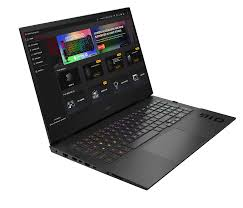
What is Omen Gaming Hub?
Omen Gaming Hub is HP’s all-in-one gaming software designed to enhance the performance and experience of Omen-branded PCs and accessories. It acts as a central control panel, allowing users to manage system performance, customize lighting, monitor hardware, and optimize network settings—all from a single interface.
Overview of Omen Gaming Hub
The software is built to provide real-time performance insights, including CPU and GPU usage, frame rates, and system temperature. This allows gamers to adjust settings on the fly, ensuring smooth gameplay without interruptions. Beyond performance monitoring, Omen Gaming Hub integrates customization tools, giving users the ability to tweak keyboard macros, RGB lighting, and game-specific profiles.
History and Development by HP
Launched as part of HP’s Omen gaming ecosystem, Omen Gaming Hub was developed to compete with other gaming suites like MSI Dragon Center and Razer Synapse. Its main focus is streamlined performance management for both hardware and software, making it accessible even for gamers who are not tech experts. HP continuously updates the hub with new features, including AI-driven optimization tools and advanced network management.
Supported Devices and Platforms
While primarily designed for HP Omen laptops and desktops, the hub also supports a wide range of HP peripherals, including Omen keyboards, mice, and headsets. Compatibility is mostly limited to Windows 10 and 11, ensuring a smooth and stable experience for PC gamers.
Key Features of Omen Gaming Hub
Omen Gaming Hub is packed with features designed to improve gaming performance, system management, and personalization. Whether you’re a casual gamer or a competitive player, these tools provide real-time insights and customization options to enhance your gaming experience. Below is a detailed breakdown of the hub’s most valuable features.
Game Performance Monitoring
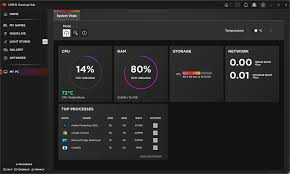
One of the standout features of Omen Gaming Hub is its game performance dashboard. This tool allows gamers to monitor:
- CPU and GPU usage: See how much of your system resources are being used during gameplay.
- Frame rate (FPS) tracking: Ensure games run smoothly without stuttering.
- Temperature monitoring: Prevent overheating and system crashes with real-time alerts.
This dashboard provides actionable insights, letting users tweak game settings for optimal performance. For example, lowering graphic intensity or closing background applications can stabilize FPS in high-demand games.
System Optimization Tools
Omen Gaming Hub includes optimization utilities that automatically adjust system settings for the best gaming performance. Features include:
- One-click system tuning: Optimize CPU, GPU, and memory for active games.
- Background process management: Identify and pause unnecessary programs to free up resources.
- Automatic updates: Keep drivers and firmware current for peak performance.
Gamers report that using these optimization tools can boost frame rates by up to 15-20% on high-end games, according to user tests and forums.
Network Booster and Latency Control
Lag is a major issue for competitive gamers, and Omen Gaming Hub addresses this with its network optimization feature. It helps prioritize game traffic over other applications, reducing ping and minimizing packet loss. Features include:
- Network prioritization: Assign bandwidth priority to your game.
- Latency monitoring: Track network speed and detect issues.
- Wi-Fi and LAN optimization: Adjust settings to reduce lag spikes.
Customizable RGB Lighting and Profiles
For gamers who enjoy personalization, Omen Gaming Hub offers full RGB lighting control. Users can:
- Sync lighting with games for immersive effects.
- Create multiple profiles for different games or moods.
- Control lighting on Omen keyboards, mice, and laptops.
Overclocking Features and Safety Measures
Advanced users can take advantage of safe overclocking tools within Omen Gaming Hub. These tools allow:
- Boosting CPU and GPU clock speeds for better gaming performance.
- Creating custom overclock profiles for different games.
- Monitoring system temperature and stability to avoid hardware damage.
Pro Tip: Only overclock within recommended limits, and always monitor temperatures to prevent overheating.
How to Install Omen Gaming Hub
Installing Omen Gaming Hub is a straightforward process, but ensuring your system meets the requirements is crucial for a smooth experience. This section will guide you through the installation, setup, and common troubleshooting steps.
System Requirements
Before installing Omen Gaming Hub, make sure your PC meets the following requirements:
| Requirement | Minimum | Recommended |
|---|---|---|
| Operating System | Windows 10 (64-bit) | Windows 11 (64-bit) |
| Processor | Intel Core i3 or AMD equivalent | Intel Core i5 or higher |
| RAM | 4 GB | 8 GB or higher |
| Storage | 2 GB free space | 5 GB free space |
| GPU | Integrated graphics | Dedicated GPU (NVIDIA/AMD) |
Ensuring your system meets these specifications prevents installation errors and allows all features, including RGB customization and overclocking, to function properly.
Step-by-Step Installation Guide
- Download the Installer: Visit the official HP Omen website and download the latest version of Omen Gaming Hub.
- Run the Installer: Double-click the downloaded file and follow the on-screen instructions.
- Accept Terms and Conditions: Make sure to read the license agreement before proceeding.
- Select Installation Location: You can choose the default location or a custom folder on your PC.
- Complete Installation: Once finished, launch Omen Gaming Hub from the Start menu or desktop shortcut.
Troubleshooting Common Installation Issues
Even with a smooth setup, users may face minor problems:
- Error: “Software not compatible” → Ensure your Windows version is updated to the latest build.
- Error: “Missing .NET Framework” → Download and install the required .NET version from Microsoft.
- Software crashes on launch → Run the application as an administrator and update your graphics drivers.
Tip: Restart your PC after installation to ensure all features are properly initialized.
This section ensures readers can successfully install Omen Gaming Hub and avoid common pitfalls, making it actionable and beginner-friendly.
How to Use Omen Gaming Hub Effectively
Once installed, Omen Gaming Hub becomes your central control panel for gaming performance, customization, and optimization. Understanding how to use its features effectively can dramatically improve your PC gaming experience.
Navigating the Dashboard
The dashboard is the first screen you see after launching Omen Gaming Hub. It provides a snapshot of your system’s health and performance:
- System Overview: CPU, GPU, and RAM usage in real-time.
- FPS Tracker: Displays frame rates for current games.
- Temperature Monitoring: Alerts if your system is overheating.
- Quick Access Shortcuts: Launch games, customize profiles, or access performance tools.
The dashboard is designed for simplicity and quick access, ensuring you can monitor performance without leaving your game.
Creating and Managing Gaming Profiles
One of the most powerful features is the ability to create custom profiles for individual games:
- Assign specific CPU/GPU settings per game.
- Save RGB lighting themes for each profile.
- Optimize network settings to prioritize game traffic.
Profiles allow seamless switching between games without manually adjusting settings every time, providing a personalized gaming experience.
Performance Optimization Tips for Gamers
Omen Gaming Hub provides several tools to boost performance:
- One-Click Optimization: Automatically adjusts CPU, GPU, and RAM for peak performance.
- Background Process Management: Pauses unnecessary programs that consume resources.
- Game-Specific Settings: Tweak graphics, FPS limits, and refresh rates for optimal performance.
Gamers often notice smoother gameplay and reduced stuttering when using these tools, especially in resource-intensive games like AAA titles.
Using Omen Gaming Hub for FPS and Graphics Improvements
- Monitor FPS in real-time to identify bottlenecks.
- Adjust overclocking settings safely to increase GPU performance.
- Use network booster to reduce latency in online multiplayer games.
By combining monitoring, optimization, and customization, Omen Gaming Hub ensures your system delivers maximum performance with minimal effort.
Omen Gaming Hub vs Other Gaming Software
When choosing a gaming management suite, many gamers compare Omen Gaming Hub with other popular software. Understanding its advantages and differences can help you decide if it’s the right choice for your setup.
Comparison with MSI Dragon Center
| Feature | Omen Gaming Hub | MSI Dragon Center |
|---|---|---|
| Dashboard | Simplified, intuitive interface | Advanced, sometimes complex |
| System Optimization | One-click tuning and overclocking | Manual tuning with presets |
| RGB Customization | Full RGB control for Omen devices | Limited to MSI peripherals |
| Network Optimization | Built-in network booster | Requires additional tools |
| Compatibility | HP Omen devices | MSI devices and some general PCs |
Key takeaway: Omen Gaming Hub is easier to use for beginners, while Dragon Center may appeal to advanced users familiar with detailed hardware tweaking.
Comparison with Razer Synapse
- Razer Synapse focuses heavily on RGB customization and peripherals but has limited system optimization tools.
- Omen Gaming Hub provides a more balanced experience with both performance monitoring and hardware customization.
Unique Benefits of Using Omen Gaming Hub:
- Integrated all-in-one solution: Monitor, optimize, and customize from a single interface.
- Safe overclocking: Designed specifically for Omen PCs with built-in safety measures.
- Network optimization: Prioritizes game traffic for smoother online gameplay.
- Frequent updates and support: Regular updates from HP ensure compatibility with new games and hardware.
In short, Omen Gaming Hub stands out for its ease of use, all-in-one functionality, and gaming-focused optimizations, making it ideal for both casual and competitive gamers.
Customization Options in Omen Gaming Hub
One of the standout features of Omen Gaming Hub is its extensive customization capabilities. Gamers can tailor their setup to match their personal style and gameplay needs, from RGB lighting to in-game overlays.
RGB Lighting and Effects
Omen Gaming Hub allows full control over RGB lighting for Omen laptops, desktops, keyboards, and mice:
- Choose from predefined lighting effects like breathing, wave, or static colors.
- Sync lighting with games to create immersive experiences—lights can react to in-game events.
- Create custom profiles for different moods or games, so each profile has its unique aesthetic.
This makes your gaming setup not only functional but visually striking.
Keyboard and Mouse Macro Settings
Gamers can program macros and keybindings for faster execution in competitive games:
- Record and assign complex combos to a single key.
- Adjust key repeat rates for optimal responsiveness.
- Save multiple macro profiles for different games or scenarios.
Macros can drastically improve reaction times in fast-paced games, giving competitive players a performance edge.
In-Game Overlay Customization
The in-game overlay allows quick access to system stats and performance monitoring without leaving your game:
- Monitor FPS, CPU/GPU usage, and temperatures in real-time.
- Access shortcuts for launching games, switching profiles, or adjusting network settings.
- Customize overlay layout and transparency to avoid obstructing gameplay.
Pro Tip: Use the overlay to monitor system health during long gaming sessions, helping prevent overheating or performance drops.
Gaming Performance and System Optimization
Optimizing your PC for gaming is one of the main reasons to use Omen Gaming Hub. It provides tools and features that maximize FPS, reduce lag, and keep your system running smoothly during intense gaming sessions.
Boosting FPS and Reducing Lag
Omen Gaming Hub allows you to:
- Limit background processes that consume CPU or RAM.
- Adjust graphics settings dynamically based on performance monitoring.
- Prioritize network traffic for games using the network booster.
Gamers have reported FPS increases of 10-20% in resource-intensive games like Cyberpunk 2077 and Call of Duty: Modern Warfare when using these optimization tools.
Optimizing CPU and GPU Performance
The hub provides safe overclocking tools and system tuning features:
- CPU and GPU overclocking: Push hardware for better frame rates while monitoring temperatures.
- Automatic tuning: Let the software adjust system settings for the best balance between performance and stability.
- Performance profiles: Create different profiles for gaming, streaming, or multitasking.
Monitoring Temperature and Preventing Overheating
Maintaining safe temperatures is critical for long-term hardware health:
- Real-time temperature monitoring for CPU, GPU, and system components.
- Automatic alerts if temperatures exceed safe limits.
- Recommendations for adjusting fan speeds or reducing load to prevent throttling.
By combining monitoring, tuning, and temperature management, Omen Gaming Hub ensures your system consistently delivers smooth and stable gaming performance.
Troubleshooting Omen Gaming Hub
Even the best software can run into issues. Omen Gaming Hub users occasionally face errors or performance problems, but most can be resolved quickly with simple troubleshooting steps.
Common Errors and How to Fix Them
- Error: “Omen Gaming Hub not opening” → Run the program as an administrator, or reinstall the latest version from the HP website.
- Error: “Device not detected” → Ensure your Omen peripherals are properly connected and check for driver updates.
- Software crashes during gameplay → Close unnecessary background applications and make sure your system meets the recommended requirements.
Updating Software and Drivers
Keeping Omen Gaming Hub and your system drivers updated is crucial:
- Check for hub updates within the software.
- Update graphics and network drivers to the latest versions.
- Restart your PC after updates to apply changes effectively.
Support Resources and Community Forums
If troubleshooting doesn’t solve your issue, HP offers multiple support options:
- Official HP Support: Contact for software or hardware-related problems.
- Omen Community Forums: Share experiences, solutions, and tips with other gamers.
- Online Guides and Tutorials: Step-by-step solutions for common issues, including installation and performance optimization.
By following these steps, most Omen Gaming Hub issues can be resolved quickly, allowing gamers to focus on performance and customization rather than technical problems.
Tips and Tricks for Advanced Users
For gamers who want to get the most out of Omen Gaming Hub, there are several advanced strategies to enhance performance, streamline gameplay, and customize their setup further.
Overclocking Safely Using Omen Gaming Hub
Overclocking can improve FPS and responsiveness but must be done carefully:
- Use Omen’s built-in overclocking tools instead of third-party software.
- Monitor temperatures and voltage in real-time to prevent hardware damage.
- Create game-specific overclock profiles for different performance needs.
Pro Tip: Gradually increase clock speeds and test stability to avoid system crashes.
Automating Game Profiles for Multiple Games
Advanced users can automate profiles to switch settings based on the game being played:
- Assign specific CPU/GPU, network, and lighting profiles per game.
- Enable auto-launch optimization when starting a game to save time.
- Use hotkeys or macros to quickly switch between profiles during gameplay.
This approach maximizes convenience and ensures each game runs at optimal settings without manual adjustments.
Network Optimization for Competitive Gaming
Reducing lag is critical in multiplayer and online games:
- Use Omen’s network booster to prioritize game traffic over other applications.
- Monitor ping and latency in real-time to identify network issues.
- Adjust Wi-Fi or LAN settings to maintain consistent performance during high-traffic gaming sessions.
By combining these advanced tips with Omen Gaming Hub’s monitoring tools, gamers can achieve smooth gameplay, reduced lag, and highly personalized setups, gaining a competitive edge in fast-paced games.
Omen Gaming Hub FAQs
Here are some of the most frequently asked questions about Omen Gaming Hub, helping both new and experienced users understand the software better.
1. What devices support Omen Gaming Hub?
Omen Gaming Hub is primarily designed for HP Omen laptops, desktops, and peripherals, including keyboards, mice, and headsets. Some features may not work fully on non-Omen devices.
2. Is Omen Gaming Hub free to use?
Yes, the software is completely free for Omen users and can be downloaded directly from the official HP website.
3. Can Omen Gaming Hub improve gaming performance on older PCs?
While it can optimize CPU/GPU usage, manage background processes, and boost FPS, performance gains depend on the hardware. Older PCs may see modest improvements compared to high-end systems.
4. How does Omen Gaming Hub handle network lag?
The network booster prioritizes gaming traffic over other applications, reducing ping spikes and packet loss for smoother online gameplay.
5. Is it safe to use overclocking features?
Yes, when used carefully. Omen Gaming Hub includes built-in safety measures, such as temperature monitoring and automatic throttling, to prevent hardware damage during overclocking.
6. Can I customize RGB lighting for multiple games?
Absolutely. Users can create game-specific lighting profiles and synchronize effects with in-game events for immersive experiences.
7. Where can I get support if I face issues?
Support is available via HP’s official support portal, Omen community forums, and online tutorials, ensuring help is always accessible.
Conclusion – Is Omen Gaming Hub Worth It?
For gamers looking to enhance performance, customize their setup, and optimize system resources, Omen Gaming Hub proves to be a comprehensive and valuable tool. Its all-in-one dashboard combines performance monitoring, overclocking, RGB customization, and network optimization, making it ideal for both casual and competitive players.
Who Should Use Omen Gaming Hub:
- HP Omen device owners looking for integrated software solutions.
- Competitive gamers who need FPS monitoring and network optimization.
- Casual gamers who want easy system tuning and visually appealing RGB setups.
Key Takeaways:
- The software provides real-time monitoring and performance boosting tools.
- Safe overclocking and optimization features help maximize hardware without risking damage.
- Customizable profiles and RGB lighting offer both functional and aesthetic benefits.
- Regular updates from HP ensure compatibility with new games and hardware.
Overall, Omen Gaming Hub is worth installing for anyone serious about getting the most out of their Omen devices. It simplifies performance management while offering deep customization options, making your gaming experience smoother, faster, and more immersive.drr